Guides · Android
How to make a timelapse from photos on Android, without the shake.
Putting photos in a row takes a minute. Making photos taken on different days play without jumping is the hard part, because the phone was never in quite the same place. This guide covers why a photo timelapse shakes and flickers, the fix for each, and how fast to play it.
Two kinds of timelapse
Many Android cameras have a Time-lapse mode. It films while the phone stands still and keeps a frame every so often, which is right for clouds, traffic or a sunset: minutes or hours, in one go.
This guide is about the other kind: photos taken on different days, by hand, with the phone a little closer, a little higher or a little tilted each time. A beard over a month, a seedling over a summer, a room being painted. That is where the shake comes from, and no camera mode fixes it, because the photos already exist.
Three ways to stitch photos on Android
| Question | Google Photos | A video editor | Becoming |
|---|---|---|---|
| What you get | An animation, “a quick-moving GIF”, or a highlight video, “a video with music” | A video | A video, up to 1080p, portrait or landscape |
| Speed | Animations are fixed: “You can’t speed up or slow down your animation” | You set how long each photo stays | Auto, which fits the pace to the number of photos, or one of four named paces from Slow to Very fast |
| Lines the photos up | Not mentioned on Google’s help page | Usually by hand, one photo at a time: crop, scale, turn | By itself: a face by the eyes, nose and mouth, a body by the shoulders and hips, a plant or a room by matching what is in each photo |
| Evens the light | Not mentioned on Google’s help page | Usually by hand, where the editor has it | By itself, never more than 38% brighter or 28% darker per photo |
| Cost | Free | Depends on the editor | Free. The free video carries a small becoming.pics mark; Becoming Plus removes it |
Google Photos, from Google’s help page, checked 5 November 2026. A video editor: what most general editors have; yours may do more. Becoming, from its own code.
Which one fits. Six photos and a GIF for a group chat, or a short video with music: Google Photos is already on your phone and does it in a few taps. Twenty photos and an editor you know: the editor works, if you give each photo a few minutes of lining up. Dozens or hundreds of photos of the same face or the same pot: lining them up by hand is the step that never gets done, and that is the step Becoming does for you.
Why a photo timelapse shakes, and the fix
Between two photos taken days apart, the phone moved. Not much: a few centimetres closer, a little higher, a few degrees of tilt. Played one after the other, the eye reads that as the whole picture jumping, and stops seeing the slow change the video was meant to show.
The fix is to move every photo so one thing that does not change sits in the same place each time. For a face, that is the eyes, the nose and the mouth: find them in every photo, then scale, turn and shift each photo until they land on the same points. Here is what that does to two real photos, a week apart.
 As taken
 Lined up
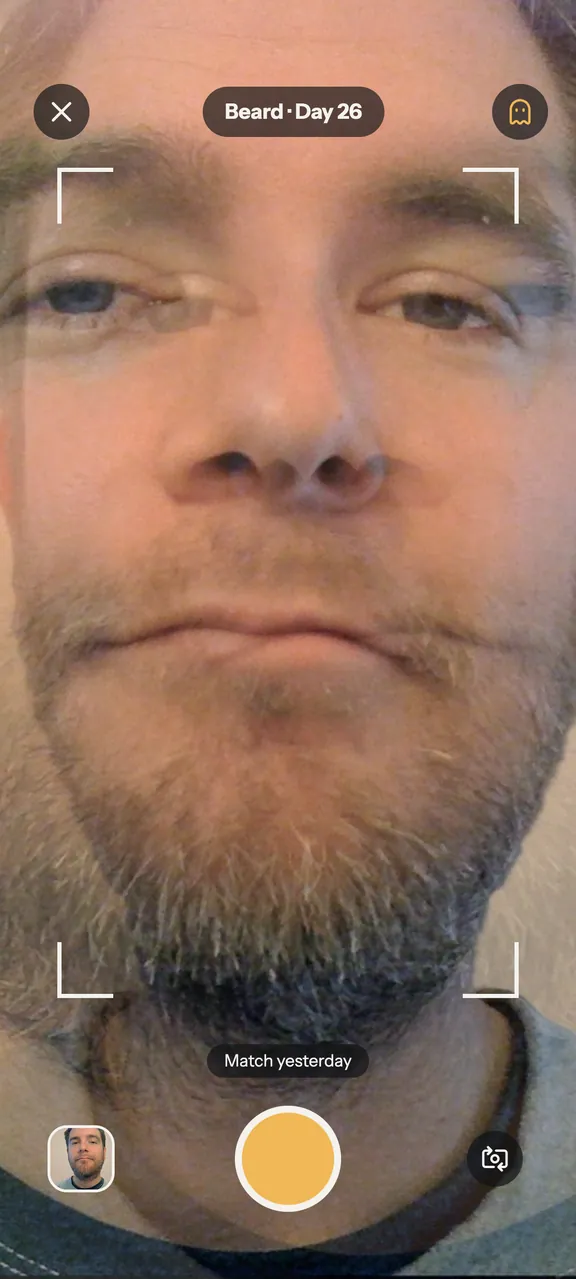
Nothing finds eyes on a plant. For a plant, a room or a build, most of the fix happens before the photo: the camera fades the last photo over the viewfinder, and you move until the two match. Afterwards, Becoming compares what is in each photo with the one before and shifts it into line where it finds a match, as far as the photo's edges allow. Its camera shows the overlay for every project, a face included, so the photos start out close and the alignment has less to do.
Why it flickers, and the fix
Every phone photo is exposed on its own. A cloud passes, a lamp is on, you wear a white shirt, and your face comes out brighter or darker than yesterday's. One photo after another, that is a flicker; fast, it is a strobe.
The fix: measure how bright each photo is, then nudge every one toward the middle of the run. The median, not the average, so one blown-out photo cannot drag the whole video darker. And keep the nudge small. A photo that is far off is a different photograph, and dragging it into line crushes its highlights or lifts its noise into view. Becoming does this by itself and never brightens a photo by more than 38% or darkens one by more than 28%.
The best fix costs nothing: take each photo in the same light, at the same time of day, away from a window whose light changes with the weather.
How fast should it play?
Slower than two photos a second, each photo is a picture you can look at. At ten a second or faster, they run together into movement. In between, it is a quick flip through the photos: you see the change more than any one photo. Cut straight from one to the next at two to four a second, it looks like photos blinking on and off, so let each one dissolve into the next.
Becoming's Auto pace starts from how many photos there are and, on the first song it offers, cuts on the beat. From 7 to 35 photos, each one between the first and the last holds half a second; with fewer, longer, up to a second. With more, each photo gets a little shorter, but more slowly than photos are added, so a photo added never makes the video shorter: a month of daily photos plays in 21 s, a year in 52.9 s. Every photo plays; none is skipped. Up to 218 photos, every one dissolves into the next; from 219 they are too short to dissolve and cut straight, and from 512 it plays ten a second, as a timelapse, and stays there. Nine photos make a video of 10 seconds, the end card included. The fastest named pace, Very fast, needs at least 30 photos, because with fewer it would be over before it started.
On a computer, ffmpeg turns a folder of photos into a video in one line. It does not line
anything up. Its deflicker filter evens each frame against the few around it, five by
default, which is not a whole-run median like Becoming's, but it softens a flicker:
ffmpeg -framerate 10 -pattern_type glob -i '*.jpg' -vf deflicker -c:v libx264 -pix_fmt yuv420p timelapse.mp4The glob pattern does not work on Windows. There, name the photos
0001.jpg, 0002.jpg and so on, and use -i %04d.jpg instead.
Step by step, in Becoming
- Pick what it is. Beard, a plant, a room, a build, or something else. That tells the app what to look for: a face, a body, or the scene as you framed it.
- Choose “Use photos I already have”, then pick them from Android's own photo picker. The app reads each photo's date, so they land in order with the right day numbers. A photo saved from a chat app may carry the day it arrived, not the day it was taken.
- Press play. The photos are lined up and the light evened. Auto picks the pace; you can change it, and the music, the look and the crop.
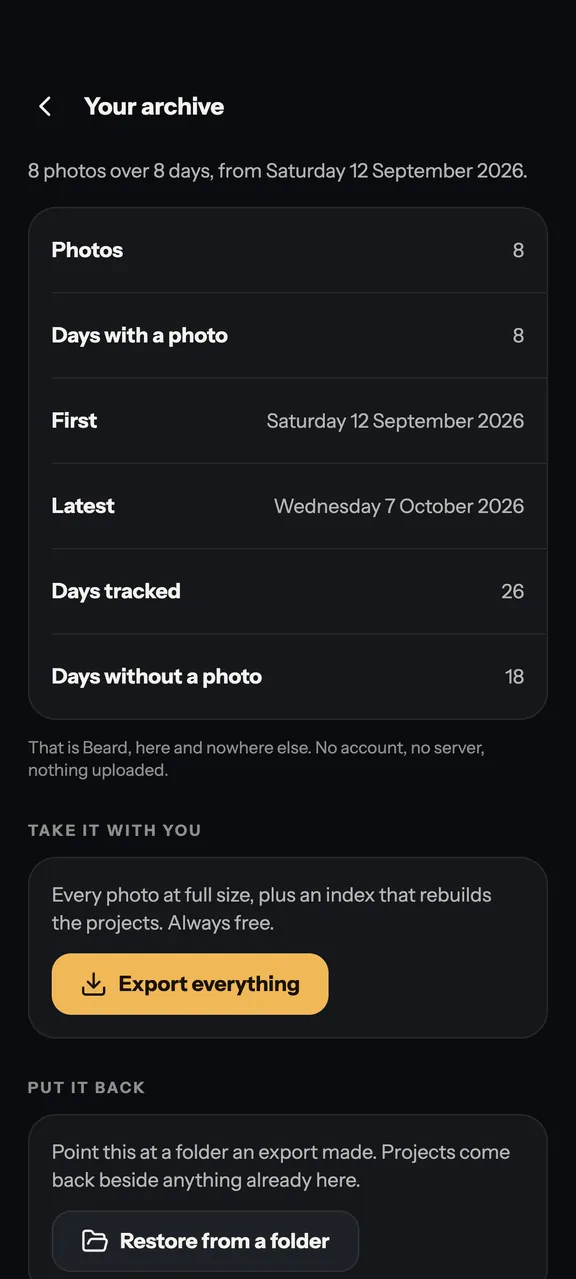
- Export, up to 1080p. From then on, add a photo whenever you can with the camera's overlay, and the video is made again from all of them.
Just want one before and after, not a video? The free before and after maker lines up two photos by hand in your browser and saves them as one picture. And for a whole month on one face, frame by frame, see a month of beard growth, lined up.